
Sign-in and security
Ways to sign in
Section titled “Ways to sign in”On the sign-in page you can use:
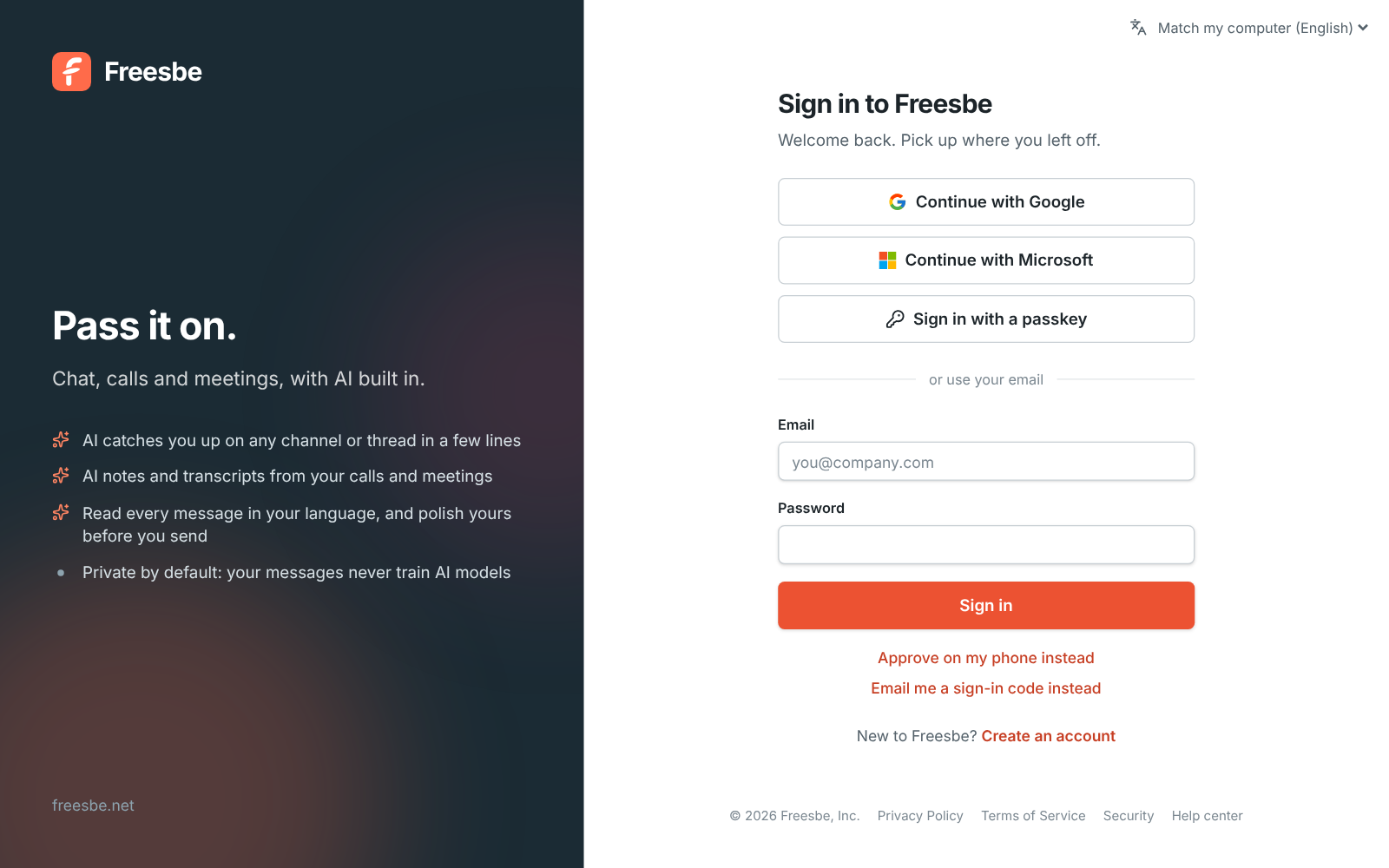
- Email and password.
- Email me a sign-in code instead. Freesbe emails you a 6-digit code. Codes last 10 minutes and stop working after five wrong guesses.
- Continue with Google or Continue with Microsoft.
- Sign in with a passkey: your fingerprint, face or device PIN, with nothing to type.
- Approve on my phone instead: no password at all. Your phone approves the sign-in; see Sign in with just your phone.
You can have several of these on one account and use whichever is handy.
Link Google or Microsoft
Section titled “Link Google or Microsoft”The first time you continue with Google or Microsoft, Freesbe links it to the account with the same email address, as long as Google or Microsoft confirms that address. After that the link holds even if the address changes.
If your Google or Microsoft address is different from your Freesbe one, link it yourself:
- Open Preferences → My account → Sign-in → Google and Microsoft.
- Click Connect next to the provider and sign in.
In the desktop app, Connect opens your web browser and goes straight on to Google or Microsoft. Sign in there, then come back to the app: the account shows up as connected. If your browser is signed in to Freesbe as someone else, it opens Preferences there instead, so you can sign in as yourself first.
You can disconnect a provider in the same place, as long as you have another way to sign in.
Passkeys
Section titled “Passkeys”In your web browser, a banner suggests adding a passkey until you have one. Click Add a passkey on it, or click Not now to hide it for good.
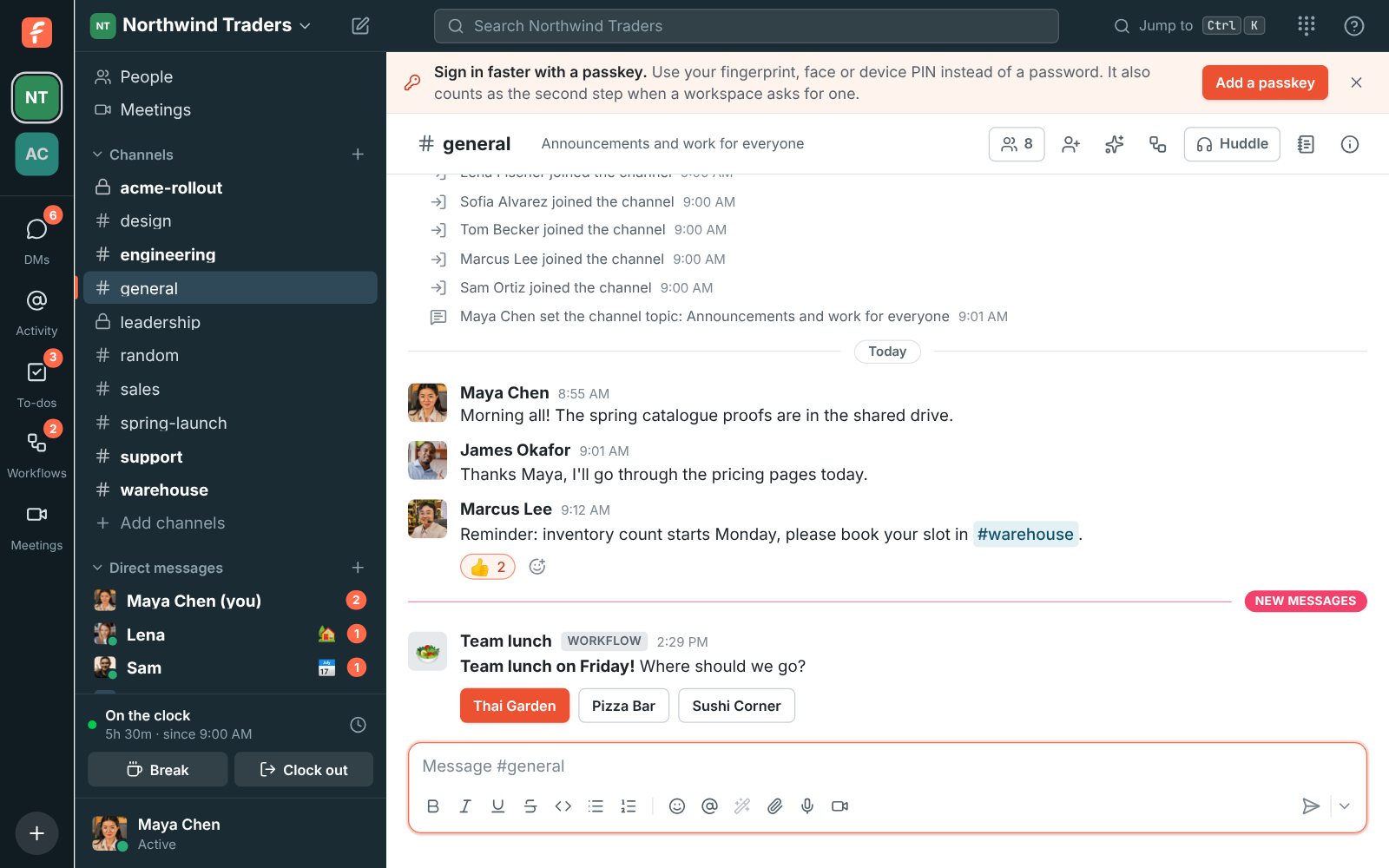
To add one from your settings:
- Go to Preferences → My account → Sign-in → Passkeys and click Add a passkey.
- Follow your browser’s prompts.
Passkeys are added in your web browser. In the desktop app, click Open in browser under Passkeys and Freesbe opens in your browser at the same page.
On your phone, tap Add a passkey on the You tab of the mobile app and confirm with your fingerprint, face or phone PIN.
Passkeys marked Synced are backed up by your password manager or device account and work on your other devices too. Remove a passkey you no longer use; you can’t remove your only way to sign in.
Authenticator app
Section titled “Authenticator app”Some workspaces ask for a second step when you sign in. A code from an authenticator app on your phone is one way to give it. Set it up in Preferences → My account → Sign-in → Authenticator app. See Multi-factor authentication.
Approve sign-ins on your phone
Section titled “Approve sign-ins on your phone”Your phone can give the second step for you. When Freesbe asks you to verify it’s you on a computer, it sends a notification to your phone instead. You tap the number your computer shows and confirm with your fingerprint or face. It works for the web app, the desktop app and the mobile app, on every plan.
To set it up, open the Freesbe app on your phone, go to the You tab and turn on Approve sign-ins. The phone confirms with your fingerprint or face, then makes a key that never leaves it.
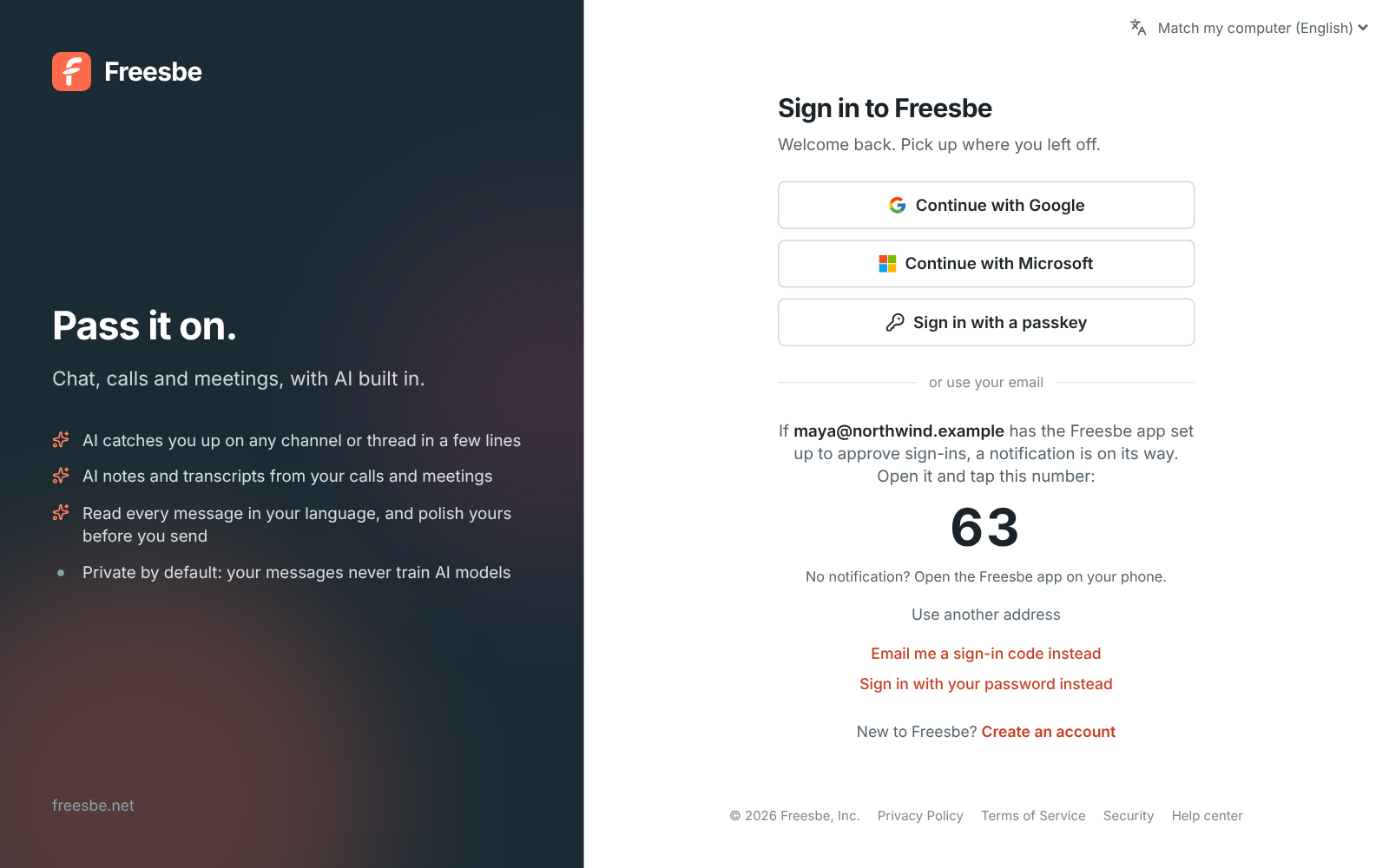
Next time you’re asked for a second step, your computer shows a two-digit number:
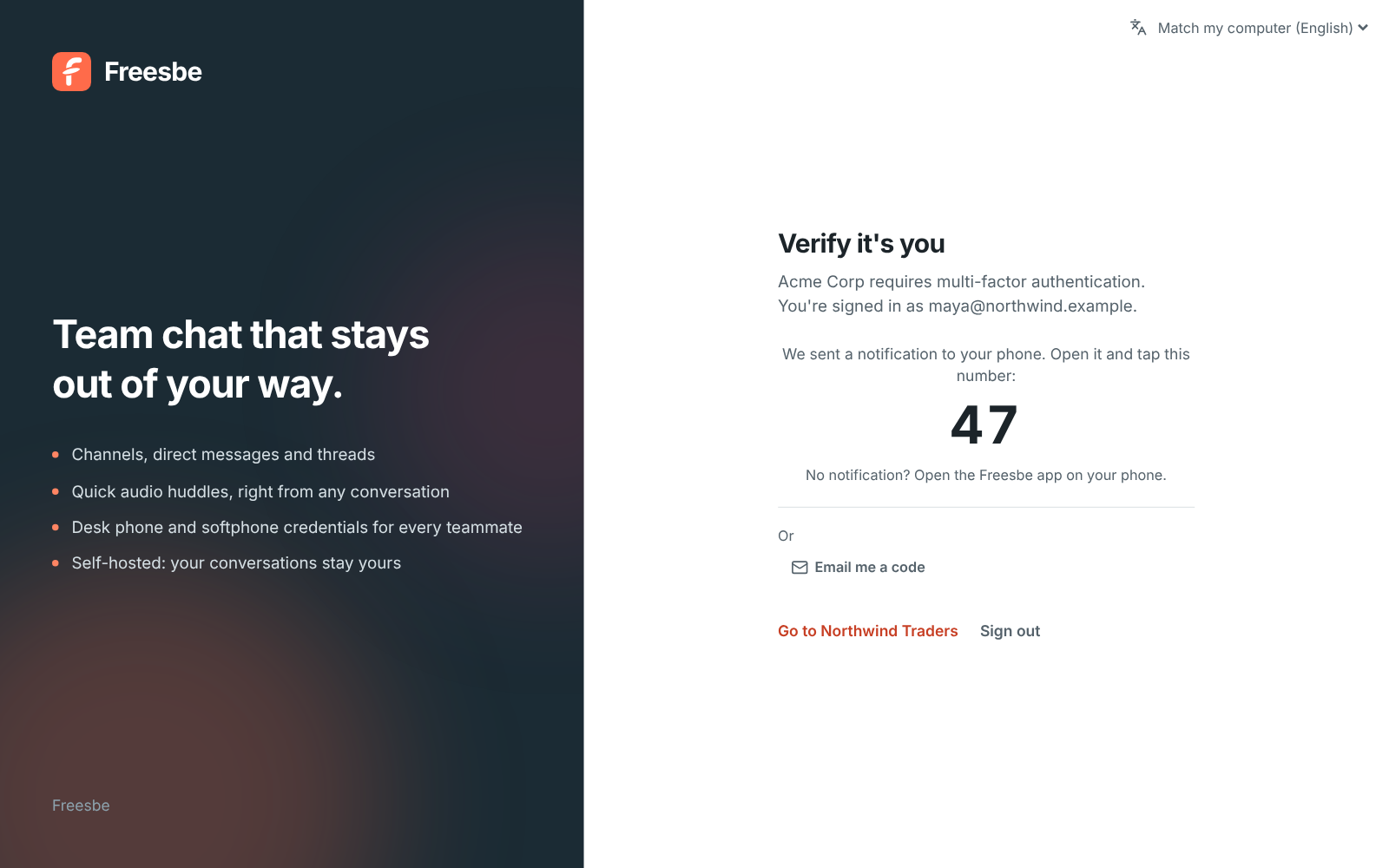
On your phone, open the notification. It shows where the sign-in is from and three numbers. Tap the one on your computer and confirm with your fingerprint or face.
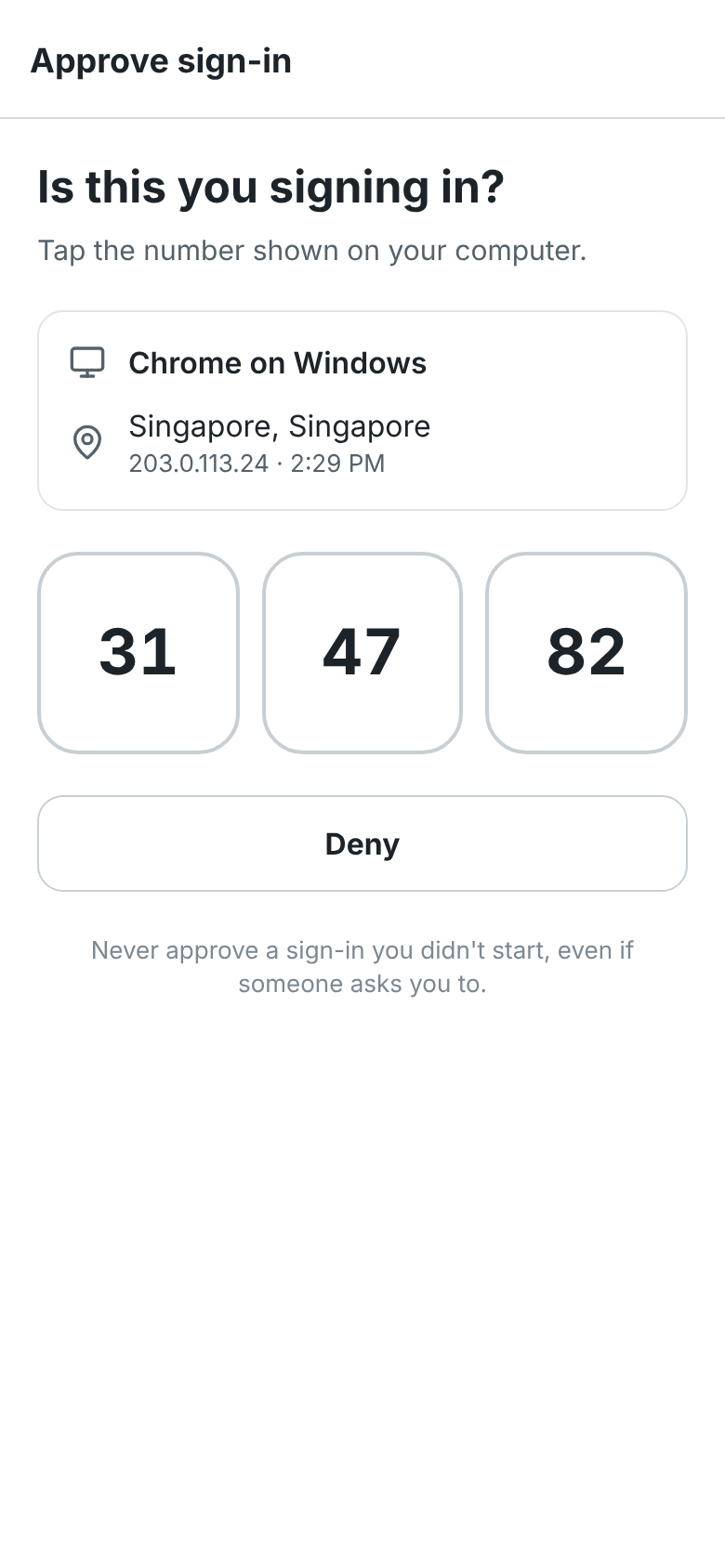
- Didn’t start this sign-in? Tap Deny, then This wasn’t me. Phone approval pauses for 15 minutes, so whoever has your password can’t keep sending requests. Change your password.
- No notification? Open the Freesbe app; the request opens there. Requests last two minutes.
- Tapping the wrong number turns the request down. Click Send again on your computer.
- Never approve a sign-in you didn’t start, even if someone asks you to on the phone or by message. Freesbe staff will never ask.
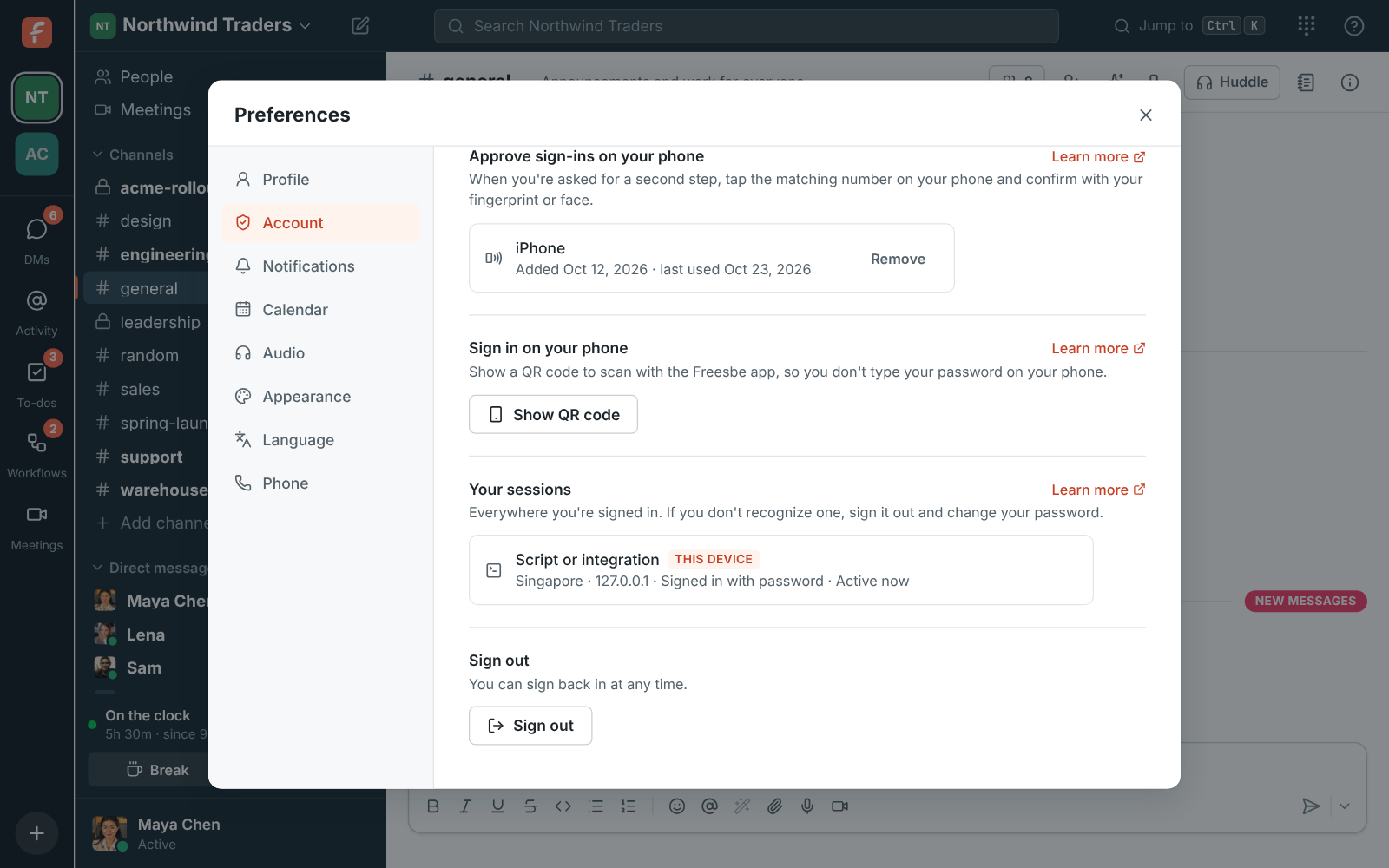
Your phones are listed in Preferences → My account → Sign-in → Approve sign-ins on your phone. Remove one there if you lose it, or sign it out under Your sessions; either way it stops approving. Your authenticator app and emailed codes still work as other ways in.
Sign in with just your phone
Section titled “Sign in with just your phone”Once your phone approves sign-ins, you can skip the password too. On the sign-in page, click Approve on my phone instead, type your email and click Send to my phone. The page shows a two-digit number; tap it on your phone and confirm with your fingerprint or face, and the page signs you in.
Your phone already proved it’s you twice over (it’s yours, and it took your fingerprint or face), so this counts as the second step too: workspaces that require one let you straight in.
Changes that ask again
Section titled “Changes that ask again”If your phone approves sign-ins, Freesbe asks you to verify it’s you again before changes that could lock people out or open things up, unless you verified in the last 15 minutes:
- Changing someone’s role, or deactivating them.
- Workspace security settings: the second step, single sign-on, file types, and remote control.
It’s one more tap on your phone, so a computer someone else walked up to can’t make those changes. Scripts and apps using API tokens aren’t asked.
Your sessions
Section titled “Your sessions”Preferences → My account → Sessions and apps → Your sessions lists everywhere you’re signed in: the desktop app or the browser and system, roughly where it signed in from and its address, how it signed in, and when it was last used. The session you’re using is marked This device.
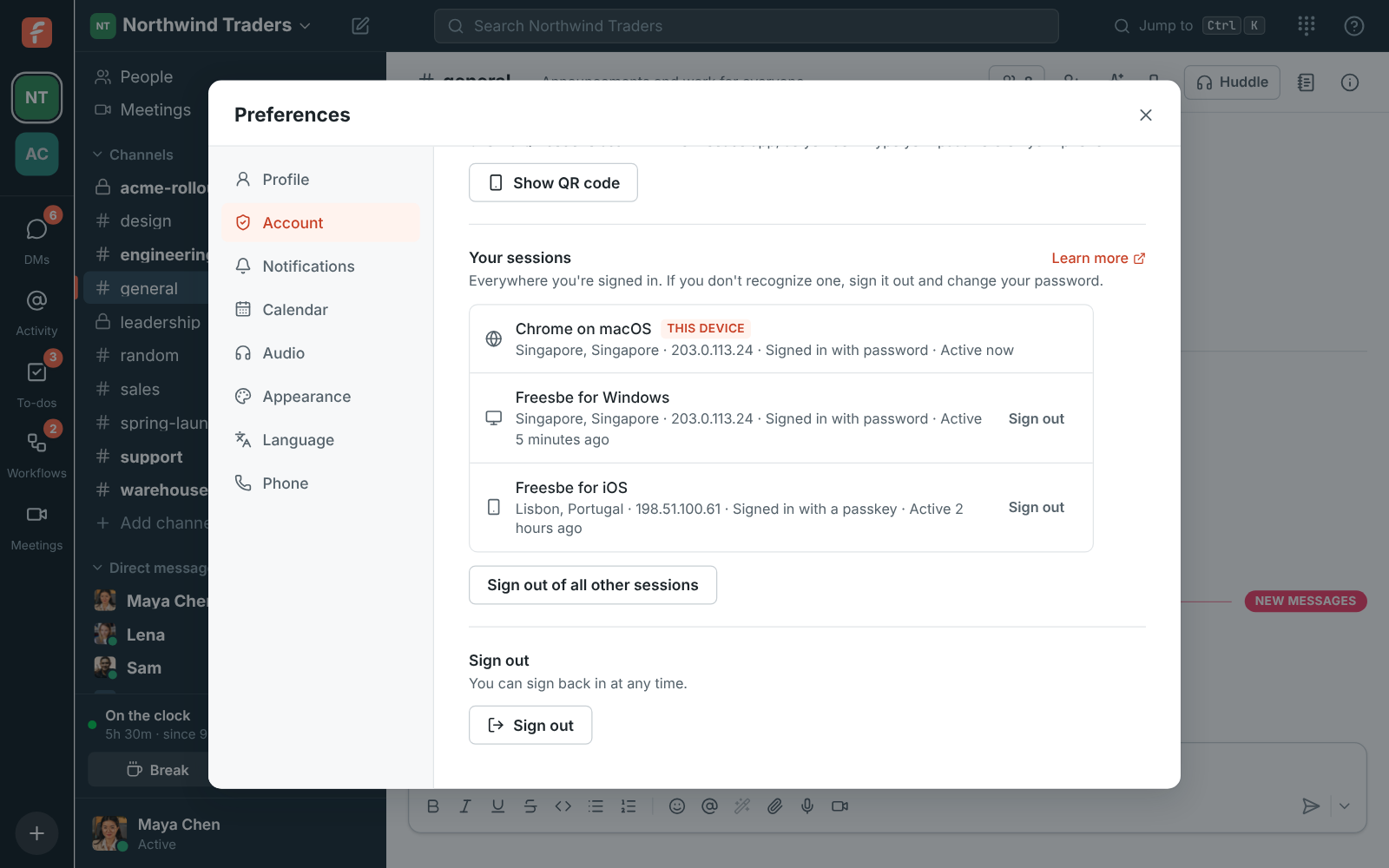
- Click Sign out next to a session to sign it out. It’s signed out right away, including any open app windows.
- Click Sign out of all other sessions to keep only the one you’re using.
If you don’t recognize a session, sign it out and change your password.
Preferences → My account → Security activity goes further back: every sign-in, wrong password and change to how you sign in over the last year. See Security activity.
Signing in to the desktop app
Section titled “Signing in to the desktop app”The desktop app signs in with Google, Microsoft and passkeys through your web browser: it opens a page in your browser, and once you’re signed in there, one click hands the sign-in back to the app. Email and password and sign-in codes work in the app directly.
Choosing Google or Microsoft always goes through that provider, even when your browser is already signed in to Freesbe, so your profile picture stays up to date. If you’re signed in to Google or Microsoft in that browser, it passes straight through with the account you linked, without asking for your password or which account to use.
Signing in to the mobile app
Section titled “Signing in to the mobile app”The mobile app signs in with passkeys, email and password and sign-in codes on its own screen. Quicker still, choose Sign in on your phone in your account menu on your computer and scan the QR code with the app; see Sign in with a QR code. Google, Microsoft and your company’s single sign-on open in a sign-in sheet inside the app and bring you back signed in. Your workspace’s second-step rules apply on your phone too.
Verify your email
Section titled “Verify your email”When you sign up with a password, Freesbe emails you a code to confirm your address. Until you do, a banner asks for it. Any code Freesbe emails you proves the address too, so signing in with an emailed code, or using one as your second step, verifies it and the banner goes away. If you verify on another device or with the link in the email, the banner goes away when you come back to the app. If someone else signs up with your address and never verifies it, proving the address (with a sign-in code, Google or Microsoft) hands the account to you and signs them out.
Agreeing to the terms
Section titled “Agreeing to the terms”Everyone agrees to Freesbe’s Terms of Service and Privacy Policy when they create an account. The sign-up form says what they come down to under the I agree box, with a link to the two-minute summary.
If your account is older than the terms, or the terms change in a way that needs your agreement, Freesbe asks once, the next time you open it. The screen isn’t a wall of legal text: it says what the terms mean for you day to day (your work stays yours, your workspace sets its rules, play fair, no surprises on billing, and the legal parts in one line), links the plain-English summary and all the documents, and asks for one tick and Agree and continue. It takes about a minute, and nothing changes in how you use Freesbe.
When the terms change, the screen says so, with the date and a What changed link to the list of changes, in plain words.
Not ready to agree? Sign out and come back when you are; Freesbe asks again then. Questions go to support@freesbe.net. Freesbe keeps a record of which version you agreed to and when. All of Freesbe’s legal documents, their short version and every change to them are at freesbe.net/legal.
Forgot your password?
Section titled “Forgot your password?”Choose Email me a sign-in code instead on the sign-in page, sign in with the code, then set a new password in Preferences → My account → Account.
Workspaces that require a second step
Section titled “Workspaces that require a second step”Some workspaces require multi-factor authentication. After you sign in, Freesbe asks you to verify with your phone, a passkey, your authenticator app or an emailed code before you can open that workspace, and may ask again later. See Multi-factor authentication.
Workspaces that require single sign-on
Section titled “Workspaces that require single sign-on”Some workspaces require Google or Microsoft. If you signed in another way, Freesbe asks you to continue with the required provider before you can use that workspace. Your account stays the same. See Single sign-on.
Staying safe
Section titled “Staying safe”- Freesbe staff will never ask for your password or sign-in code.
- Changing your password signs you out everywhere else.
- Check Your sessions now and then, and sign out of anything you don’t recognize.
- If you leave a workspace or are deactivated, the messages cached on your devices for it can no longer be read.
Delete your account
Section titled “Delete your account”Preferences → My account → Account → Delete account deletes your Freesbe account 30 days after you ask. You can keep it by signing in before then. See Delete your account.
Answers come from the Freesbe guides and are written by AI, so check the linked guide before relying on one. Please don't include personal details such as emails or passwords.